// elementor · ai
Elementor MCP: The Complete Guide to Building Elementor Pages With AI (2026)
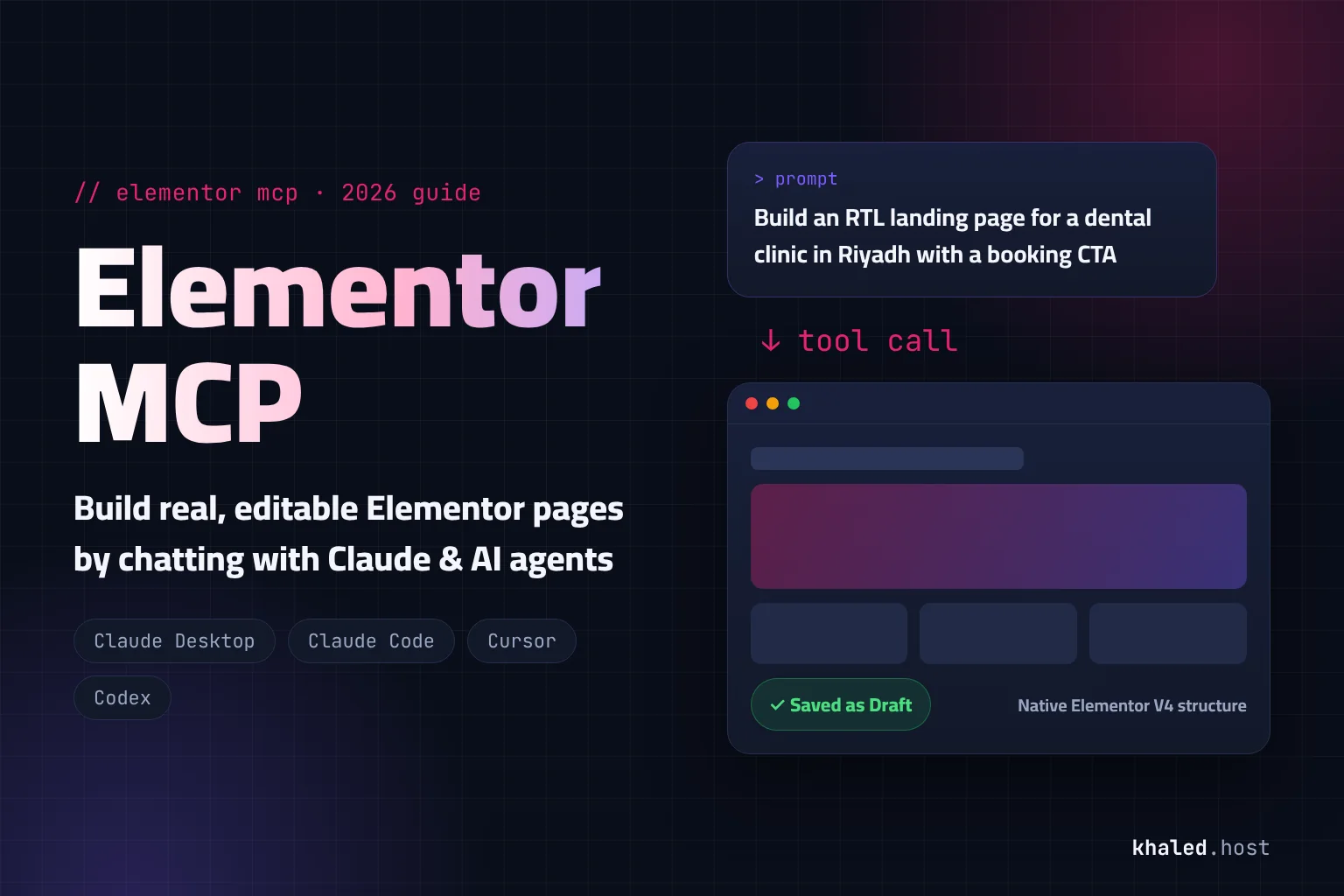
// elementor · ai
Imagine typing one sentence, “build me an Arabic landing page for a dental clinic in Riyadh with a WhatsApp booking button”, and watching a real, editable page appear inside Elementor a minute later. That is exactly what Elementor MCP does, and it is why every WordPress designer is talking about it right now.
I connected Elementor MCP to my own site (the one you are reading) and to Claude Desktop this week. In this guide I share what it is, how to set it up in about five minutes, the exact config that worked for me on Windows, what it can and can’t do yet, and a safe workflow so you never break a live page.
The short answer: Elementor MCP is Elementor’s official Model Context Protocol server. It lets AI tools such as Claude, Cursor and Codex build and edit Elementor pages for you using a native Elementor structure. You connect it from Elementor → Elementor MCP in your dashboard, everything it generates is saved as a draft, and today it works with the new Atomic (V4) elements only.
MCP (Model Context Protocol) is an open standard that lets an AI assistant use external “tools” in a safe, structured way. Think of it as a universal plug: instead of the AI only talking about your website, it can call specific actions on it, such as “create a page”, “add a section” or “apply this class”.
Elementor MCP is Elementor’s own implementation of that plug. Elementor opened it for beta testing on September 15, 2026, and the official Elementor MCP page now lists it as available. It exposes Elementor’s website-building capabilities through the WordPress Abilities API, so any MCP-compatible AI tool can build pages that are real Elementor documents rather than pasted HTML.
That last point is the big deal. Older “AI website builders” spit out code you then had to rebuild by hand. With Elementor MCP the result is a normal Elementor page: you can open it in the editor, tweak a heading, swap an image and publish, exactly as if you had built it yourself.
The Abilities API itself keeps growing: WordPress 7.2, due on December 8, 2026, adds three new core abilities. See everything new in WordPress 7.2.
Here is what happens behind the scenes when you send a prompt:
mcp-remote (started automatically with npx) carries that call from your computer to your site.https://your-site.com/wp-json/elementor/mcp/, receives it.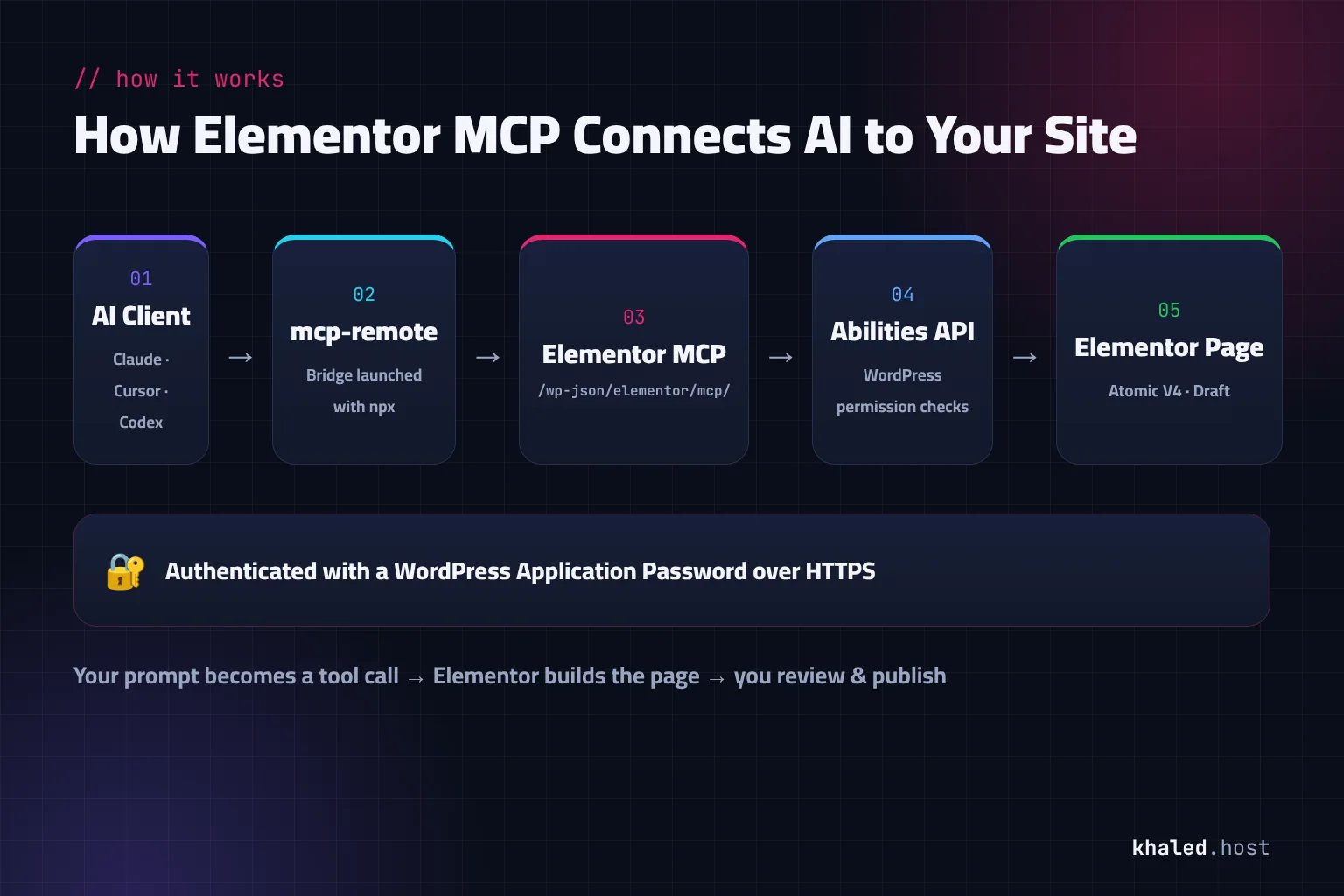
Authentication uses a standard WordPress Application Password sent over HTTPS, so the AI never sees your real login password, and you can revoke access with one click at any time.
For freelancers this turns the most boring part of the job, building the first rough layout, into a quick conversation. You spend your time on what clients actually pay for: strategy, copy, polish and conversions.
| Requirement | Details |
|---|---|
| Elementor 4 with the Atomic Editor | Elementor MCP builds and edits atomic (V4) elements. Enable the Atomic Editor from Elementor’s editor settings. |
| Administrator account | Only site admins can create the connection. |
| An MCP-compatible AI tool | Claude Desktop, Claude Code, Cursor, Codex or any other MCP client. |
| Node.js (for manual setup) | Needed so npx mcp-remote can run on your computer. |
| HTTPS on your site | Application Passwords should only travel over a secure connection. |
| Angie (optional) | Elementor’s free plugin, required for extras like other plugins’ abilities and bulk actions. |
This is the fastest route and the one Elementor recommends:
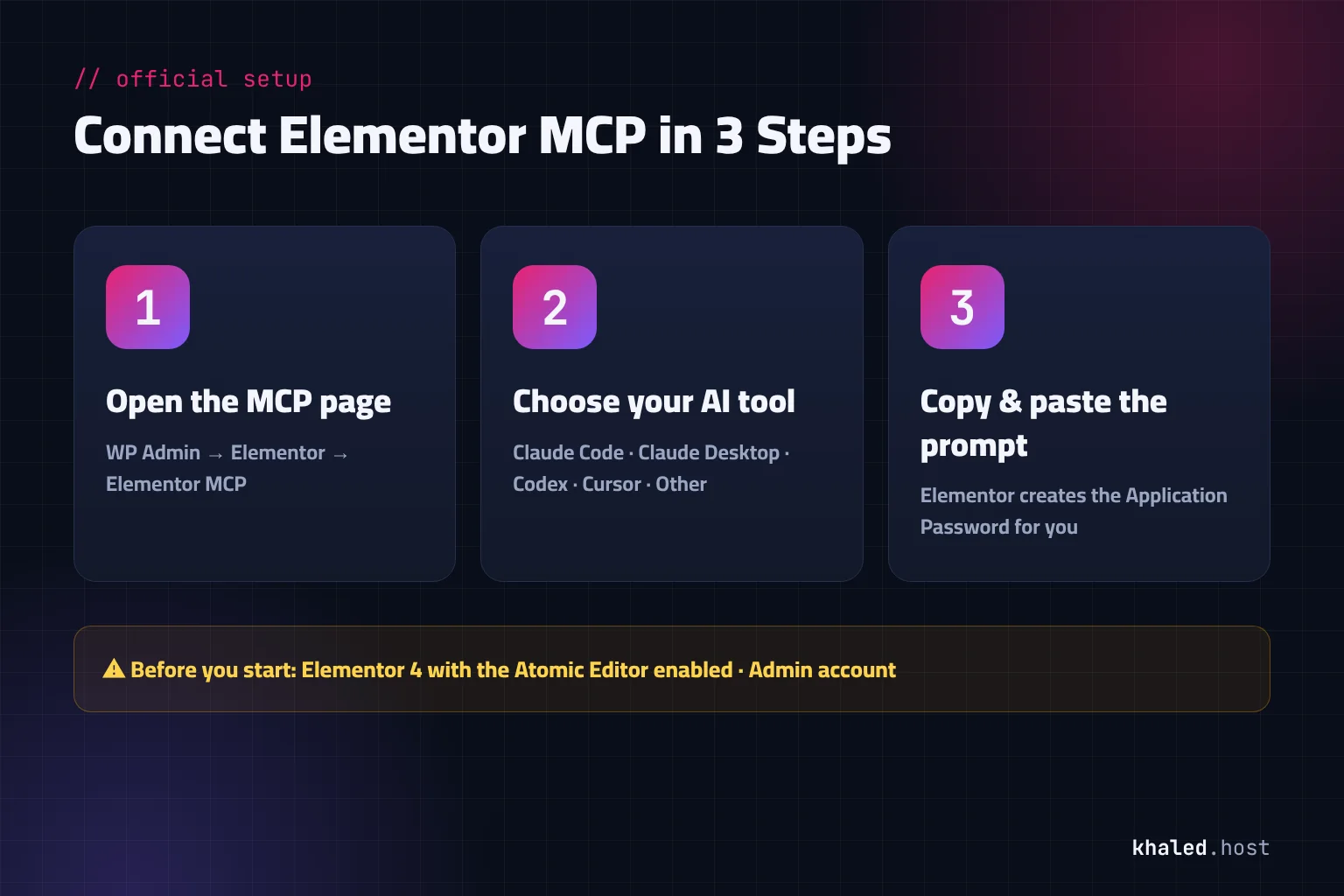
That’s it for most people. If you prefer full control, or you want to understand exactly what is going on, use the manual setup below.
This is the exact process I used on a Windows machine. It works the same way on Mac; only the file path changes.
Go to Users → Profile → Application Passwords, give it a clear name such as “Claude Desktop – Elementor MCP”, and click Add New Application Password. Copy the password right away; WordPress shows it only once.
The header is Basic followed by a Base64 encoding of username:application-password (remove the spaces from the password first). Many tools do this for you, and the official Elementor prompt does it automatically.
Open the file from Claude Desktop via Settings → Developer → Edit Config, or directly at:
%APPDATA%\Claude\claude_desktop_config.json~/Library/Application Support/Claude/claude_desktop_config.jsonAdd your server inside the mcpServers block and keep any settings already in the file:
{
  "mcpServers": {
    "my-site-elementor": {
      "command": "npx",
      "args": [
        "-y",
        "mcp-remote",
        "https://your-site.com/wp-json/elementor/mcp/",
        "--header",
        "Authorization:${AUTH_HEADER}"
      ],
      "env": {
        "AUTH_HEADER": "Basic YOUR_BASE64_TOKEN"
      }
    }
  }
}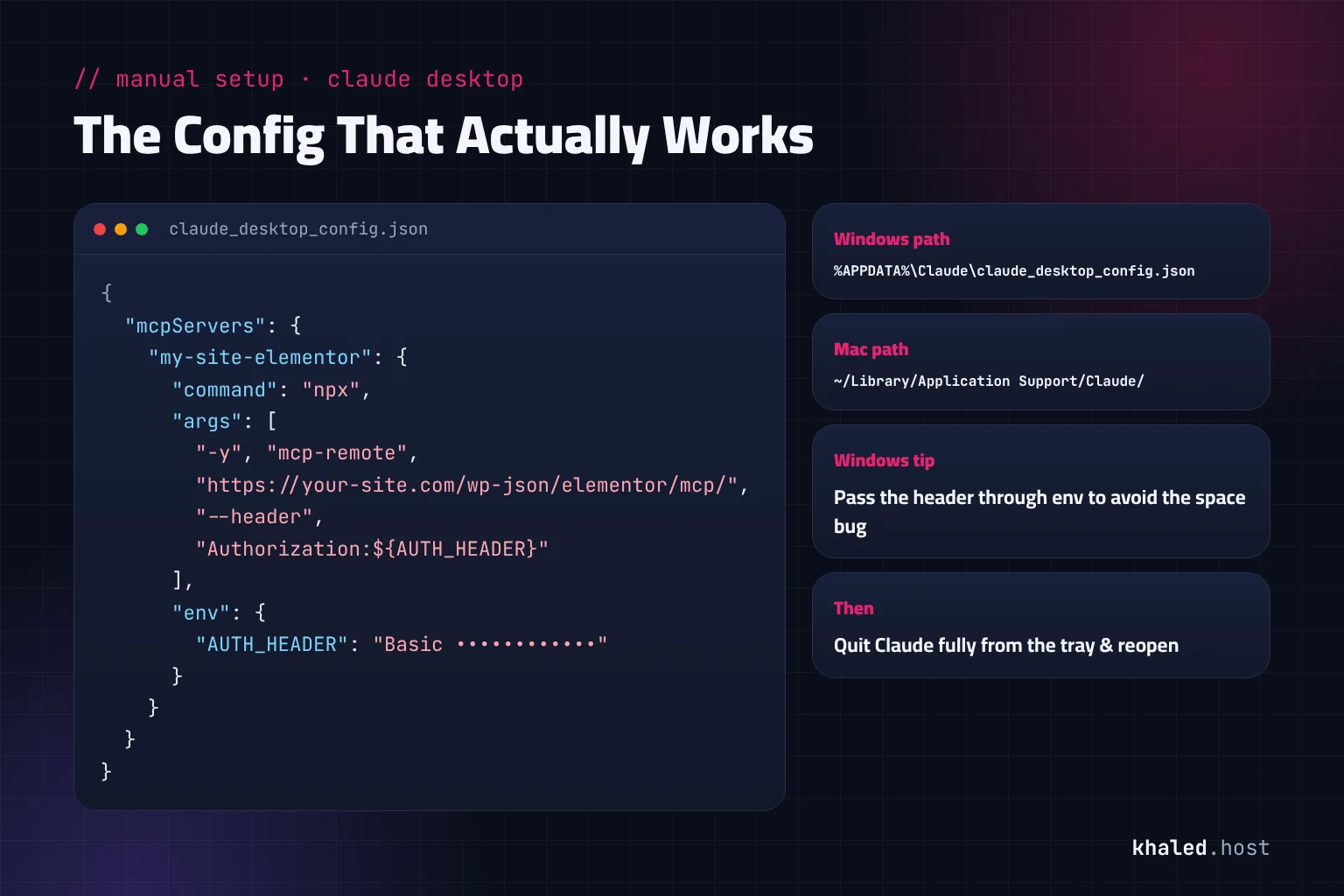
Why the env trick? On Windows, Claude Desktop can mangle arguments that contain a space, such as Authorization: Basic .... Passing the value through an environment variable is the workaround recommended by the mcp-remote project, and it works on Mac too.
Closing the window is not enough, because Claude keeps running in the background. On Windows, right-click the Claude icon in the system tray (next to the clock) and choose Quit, then open it again. On Mac press Cmd + Q.
On my site, the Elementor MCP server exposed around twenty tools. The names speak for themselves:
| Tool | What it does |
|---|---|
| create-page / build-composition | Creates a new page and builds a full layout from your description. |
| manage-elements | Adds, edits, moves or removes atomic elements on a page. |
| manage-classes / manage-global-variable | Creates and updates global classes and design variables (colors, sizes, fonts). |
| manage-component | Creates and reuses components across pages. |
| get-page-structure | Reads the element tree of an existing page before editing it. |
| create-preview-link | Generates a preview link so you can check a draft before anyone else sees it. |
| publish-document | Publishes a page, but only when you explicitly ask for it. |
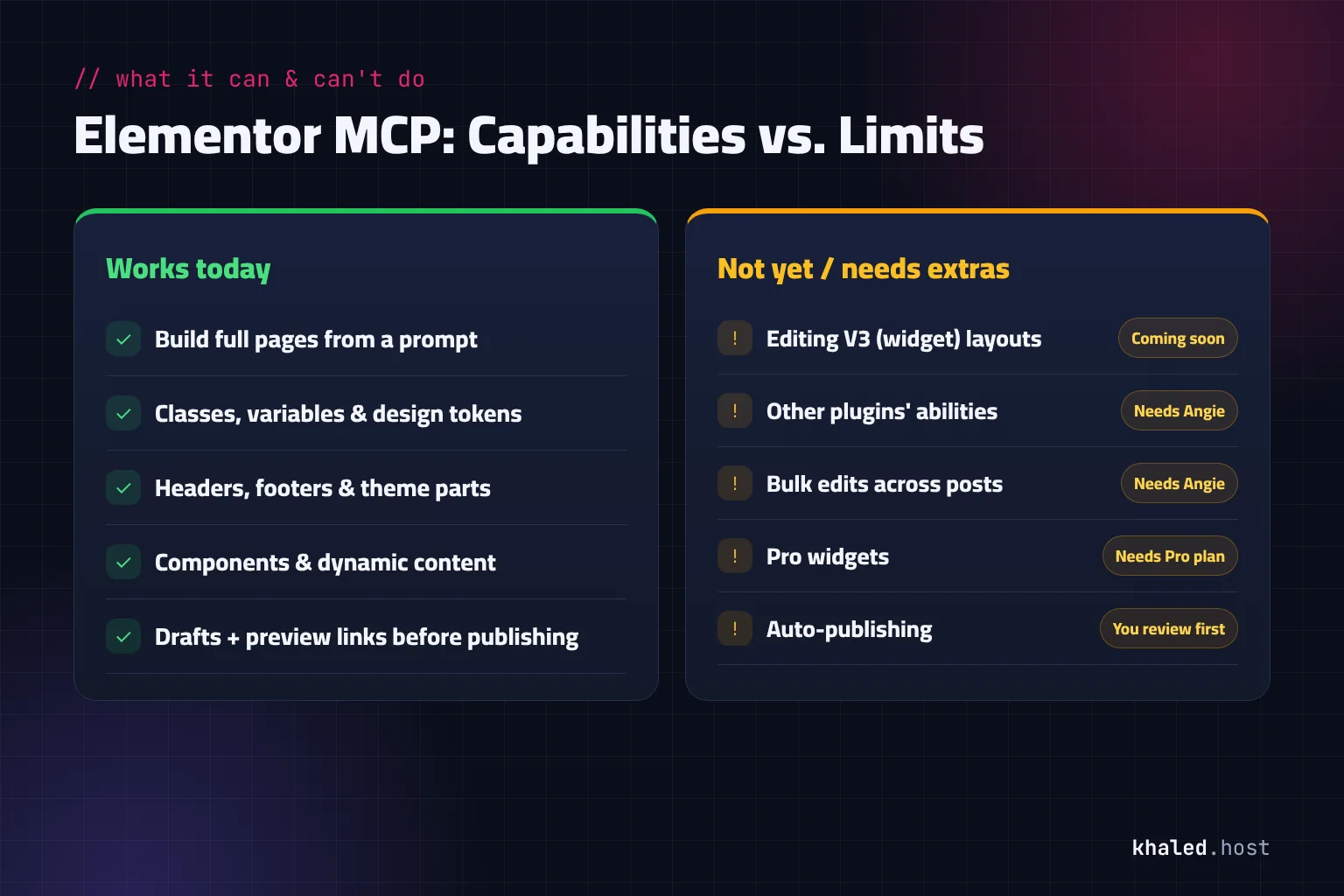
The most important limit: Elementor MCP edits atomic (V4) elements only. If your existing pages were built with classic V3 widgets (most sites built before 2026), the AI can read their structure but cannot change those widgets yet. Elementor lists V3 support as “coming soon”. So the sweet spot right now is new pages built with atomic elements. Not sure the Atomic Editor is mature enough for your project? Read my review: is Elementor Atomic ready to rely on, and what is still missing.
A few other points worth knowing:
The quality of the page depends on the quality of your brief. These are prompts I use as a starting point:
Tip: always tell the AI “draft only, don’t publish” in the first message of a session. It is a cheap insurance policy.
| Problem | Likely cause | Fix |
|---|---|---|
| Server shows “failed” in Claude | Node.js not installed, or invalid JSON | Run node -v in a terminal; validate the JSON and check commas and brackets. |
| 401 Unauthorized | Wrong username or password, or a bad Base64 token | Create a new Application Password and rebuild the header from username:password. |
| 401 even with correct details | The server or a security plugin strips the Authorization header | Ask your host to pass the Authorization header to PHP, or whitelist Application Passwords in your security plugin. |
| Tools don’t appear | Claude was not fully restarted | Quit from the system tray (or Cmd + Q) and reopen. |
| “Element can’t be modified” | The page uses V3 widgets | Build a new atomic version of the section, or wait for V3 support. |
| Header errors on Windows | A space inside the args value | Use the env + ${AUTH_HEADER} pattern shown above. |
In practice many developers use two connections side by side: Elementor MCP for design, and a general WordPress MCP for content and SEO. That is the setup I run on this site. I also prepared the same site for AI agents (Markdown pages, llms.txt and Agent Skills); the full story is in my guide to making a WordPress site AI-agent-ready. And if you are wondering whether AI is changing WordPress itself, see Is WordPress dead? The WordPress era vs AI.
Is Elementor MCP free?
Yes. Connecting is free and basic features work with free Elementor. Pro widgets need an Elementor Pro plan, and your AI tool (for example Claude) has its own pricing.
Which AI tools work with Elementor MCP?
Elementor officially lists Claude Code, Claude Desktop, Codex and Cursor, and it works with any other MCP-compatible client.
Can Elementor MCP edit my existing pages?
Only pages built with atomic (V4) elements. Classic V3 widget layouts can be read but not edited yet; Elementor says V3 support is coming.
Will the AI publish pages without my permission?
No. Generated content is saved as a draft. Publishing happens only when you do it, or when you explicitly ask the AI to.
Is it safe to give AI access to my WordPress site?
It is as safe as the Application Password you create. Use one password per tool, keep the site on HTTPS, start on staging, and revoke access any time from your profile.
Do I need to know how to code?
No. The official setup is copy-and-paste. The manual config above only needs a text editor and Node.js.
If you build new pages with Elementor’s atomic editor, yes. Elementor MCP already saves hours on first drafts, design systems and repetitive layouts, and because everything lands as a draft, the risk is low. If your site is built entirely on classic V3 widgets, connect it now to learn the workflow on new pages, and keep your existing layouts as they are until V3 editing arrives.
New to the whole question of how to build your site? Start with WordPress vs custom coding to see which path fits your project before you invest in either.
Want it set up for you, or need high-converting pages built fast and tuned for the Saudi market? I can connect Elementor MCP to your site, build your design system and deliver pages that load fast and convert. See my landing page design and Figma to WordPress services, check the landing page checklist before your next campaign, or start your project directly on WhatsApp.