// wordpress · ai
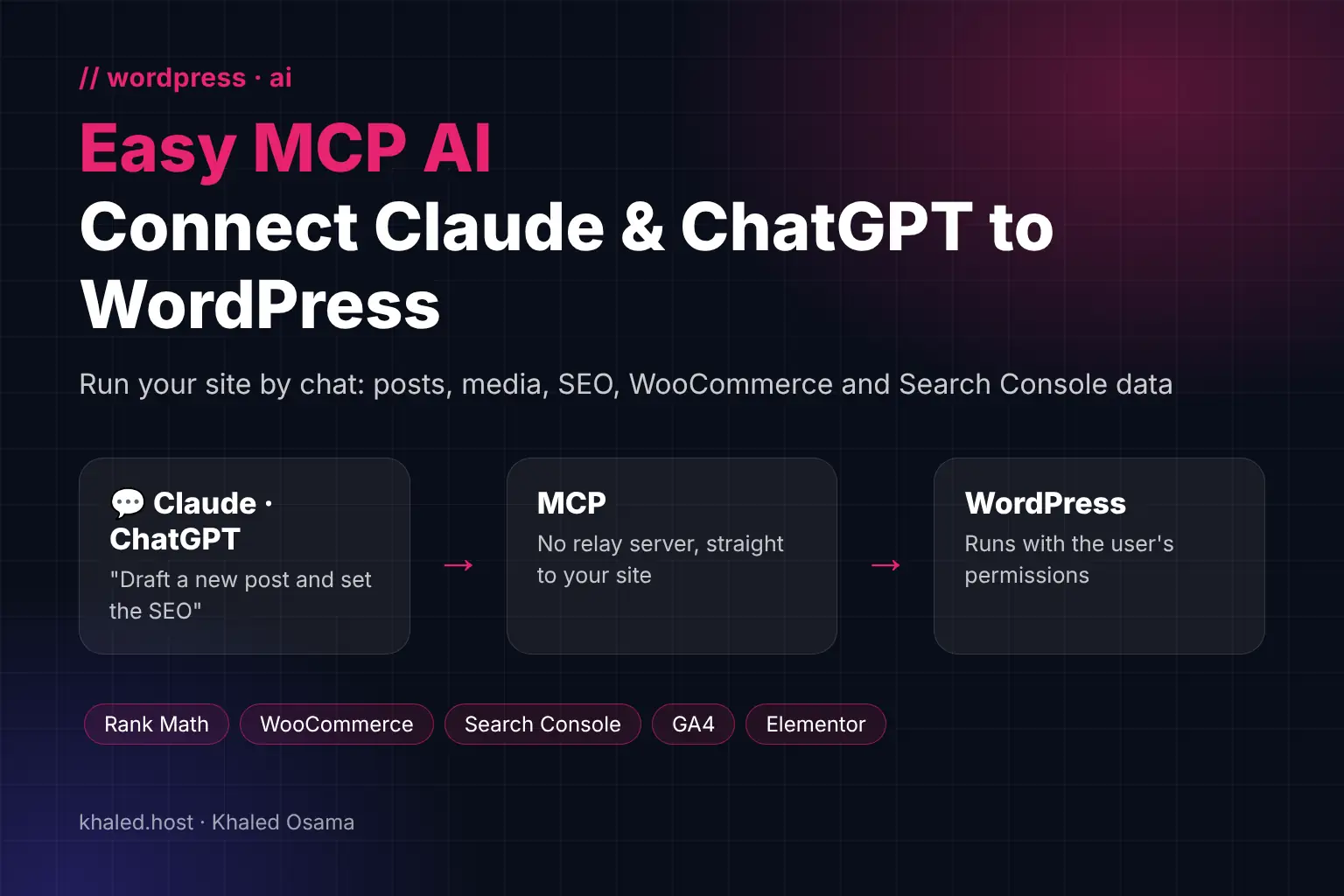
Easy MCP AI: How to Connect Claude and ChatGPT to WordPress (2026 Guide)
// wordpress · ai
Picture typing this on your phone: draft a new post, upload the cover image and set the SEO title and description in Rank Math. A few minutes later it is done on your live site, and you never opened wp-admin. That is exactly what Easy MCP AI does.
I’m writing this guide while using the plugin on this very site: the article you’re reading was prepared by Claude and published to WordPress through Easy MCP AI. You’ll learn what it is, how to connect it to Claude and ChatGPT in three steps, what it can do, and how to lock it down so your AI never gets more access than it needs.
The short answer: Easy MCP AI is a free WordPress plugin that turns your site into an MCP server, so Claude, ChatGPT, Cursor and other AI clients can manage posts, pages, media, SEO fields and WooCommerce, and read GA4 and Search Console data, from a chat. The server runs inside WordPress with no relay in between, and connections use OAuth 2.1 with per-connection tool permissions.
MCP (Model Context Protocol) is an open standard from Anthropic that lets AI assistants use outside tools in a structured, controlled way. Instead of writing text for you to copy and paste, the AI carries out the action on your site directly.
Easy MCP AI is the plugin that teaches WordPress to speak MCP. According to its official WordPress.org listing, it is developed by Themeisle, runs on 30,000+ sites with a 4.9 out of 5 rating, and ships 280+ ready-made tools. My site runs version 2.3.2.
The key idea: most AI plugins for WordPress put a writing assistant inside wp-admin and charge you for usage. Easy MCP AI works the other way round: your site becomes the server, and you use the AI client you already pay for.
/wp-json/easy-mcp-ai/v1/mcp.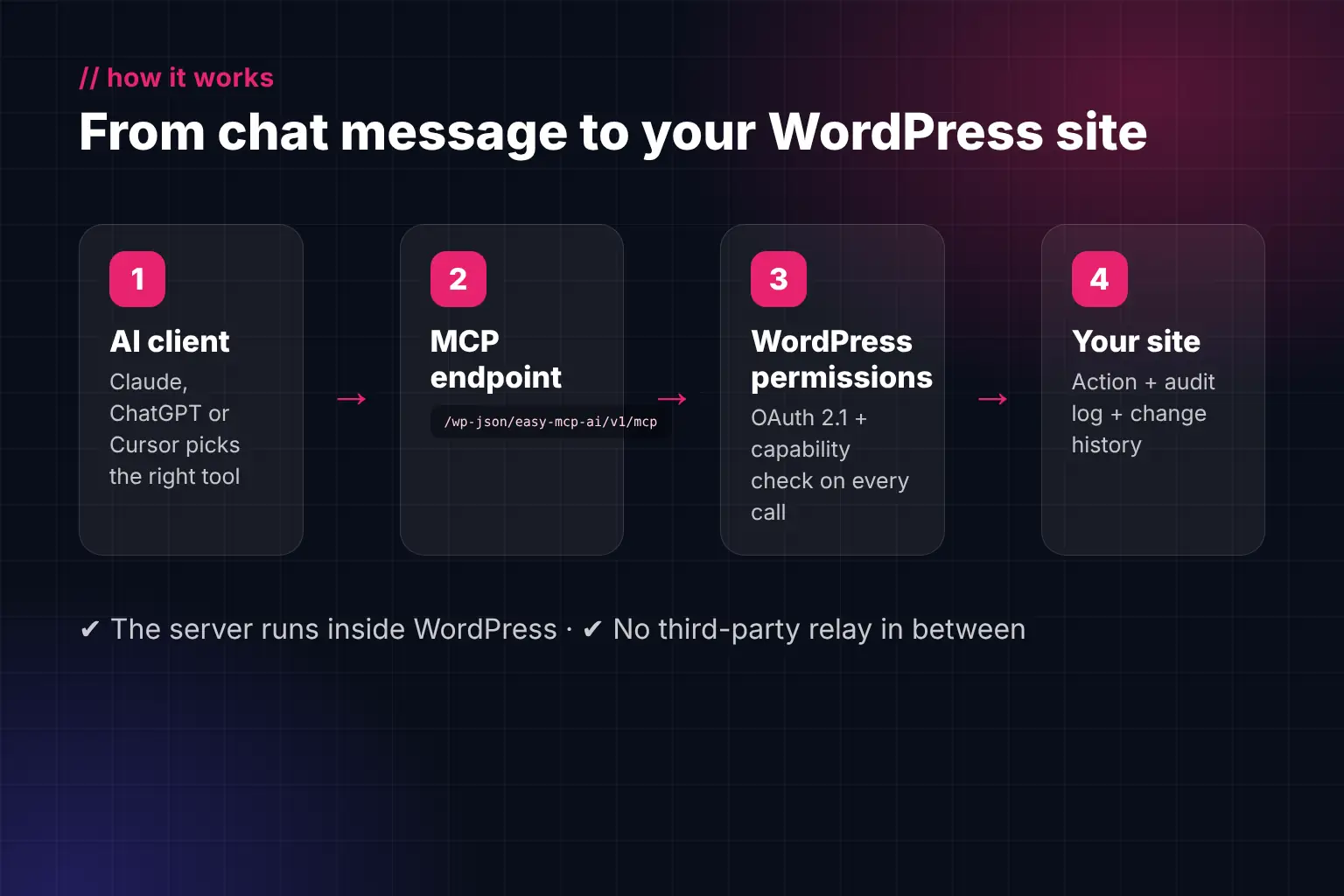
There is no relay: requests and results travel only between your AI client and your site, and the plugin itself never sends your content to OpenAI, Anthropic or Google. It doesn’t need Node.js on your host either; it is pure PHP.
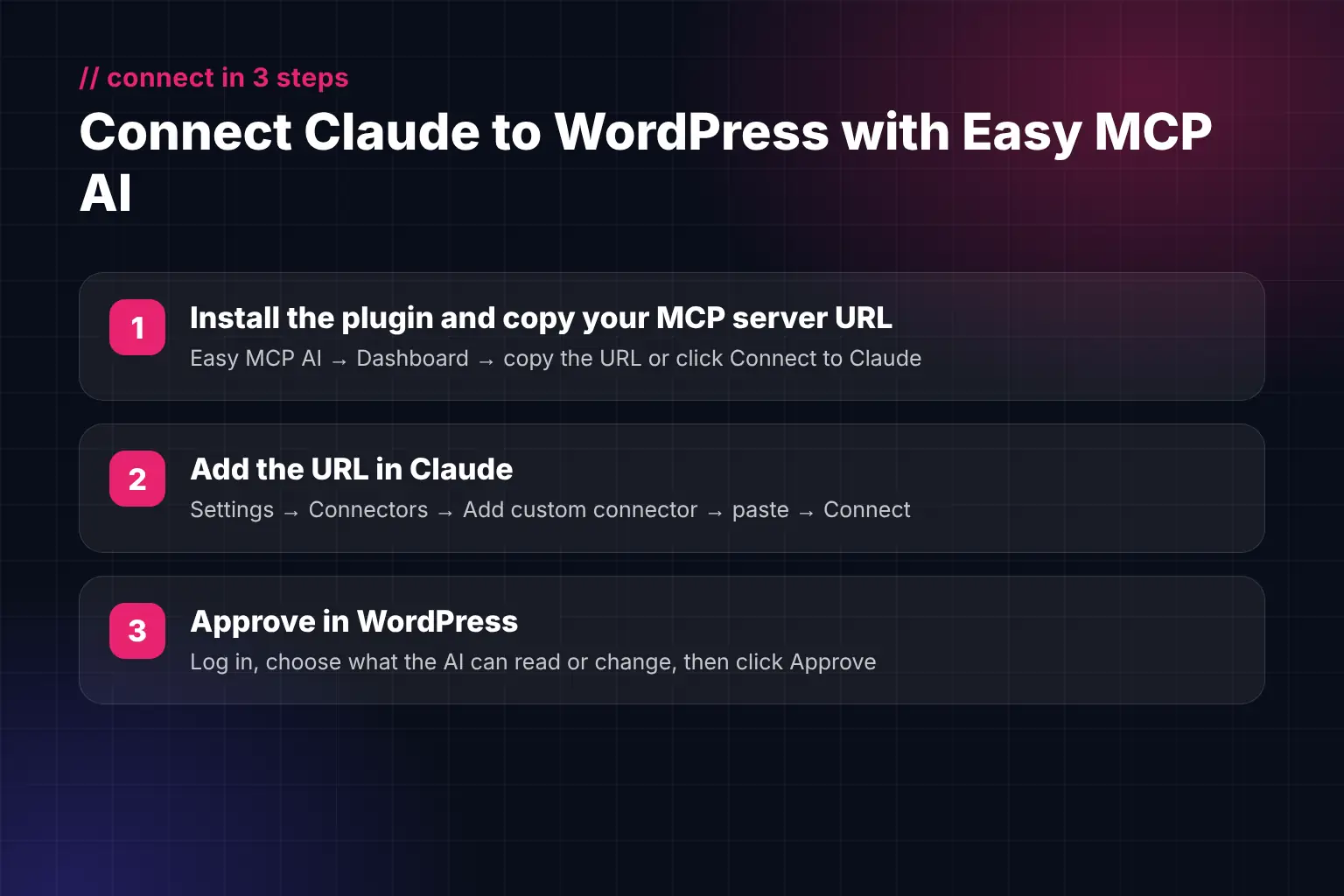
With Claude Code: run the command shown on the plugin dashboard, then type /mcp inside Claude Code to sign in.
It also works with Cursor, GitHub Copilot, OpenAI Codex, Gemini through Antigravity, n8n and any other MCP client.
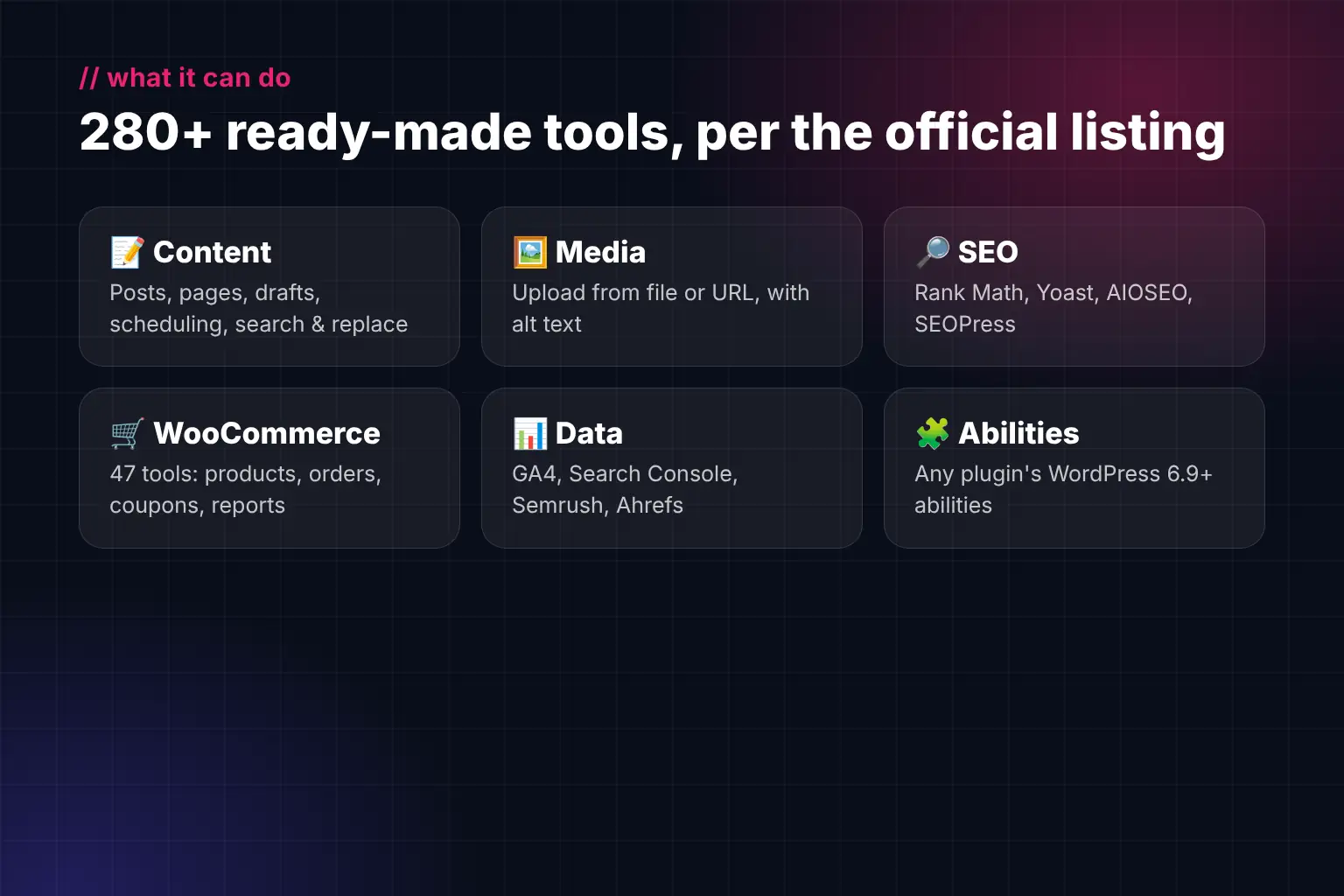
| Area | Examples |
|---|---|
| Content | Draft, edit and schedule posts and pages, search and replace inside content, restore revisions |
| Media | Upload images from a file or URL, set alt text and captions |
| SEO | Read and update SEO titles, descriptions, focus keywords, canonicals and Open Graph in Rank Math, Yoast, AIOSEO and SEOPress |
| WooCommerce | 47 tools for products, orders, customers, coupons and sales reports |
| Analytics | GA4 and Search Console queries, plus Semrush, SE Ranking, DataForSEO and Ahrefs with your own accounts |
| Abilities | Any plugin that registers WordPress 6.9+ abilities becomes tools, such as Elementor, Rank Math and WPCode |
Try prompts like:
I use the plugin on this site with Claude. Here’s what I found in practice:
Giving an AI client access to a live site is a serious decision. The plugin ships with several layers of protection; use them:
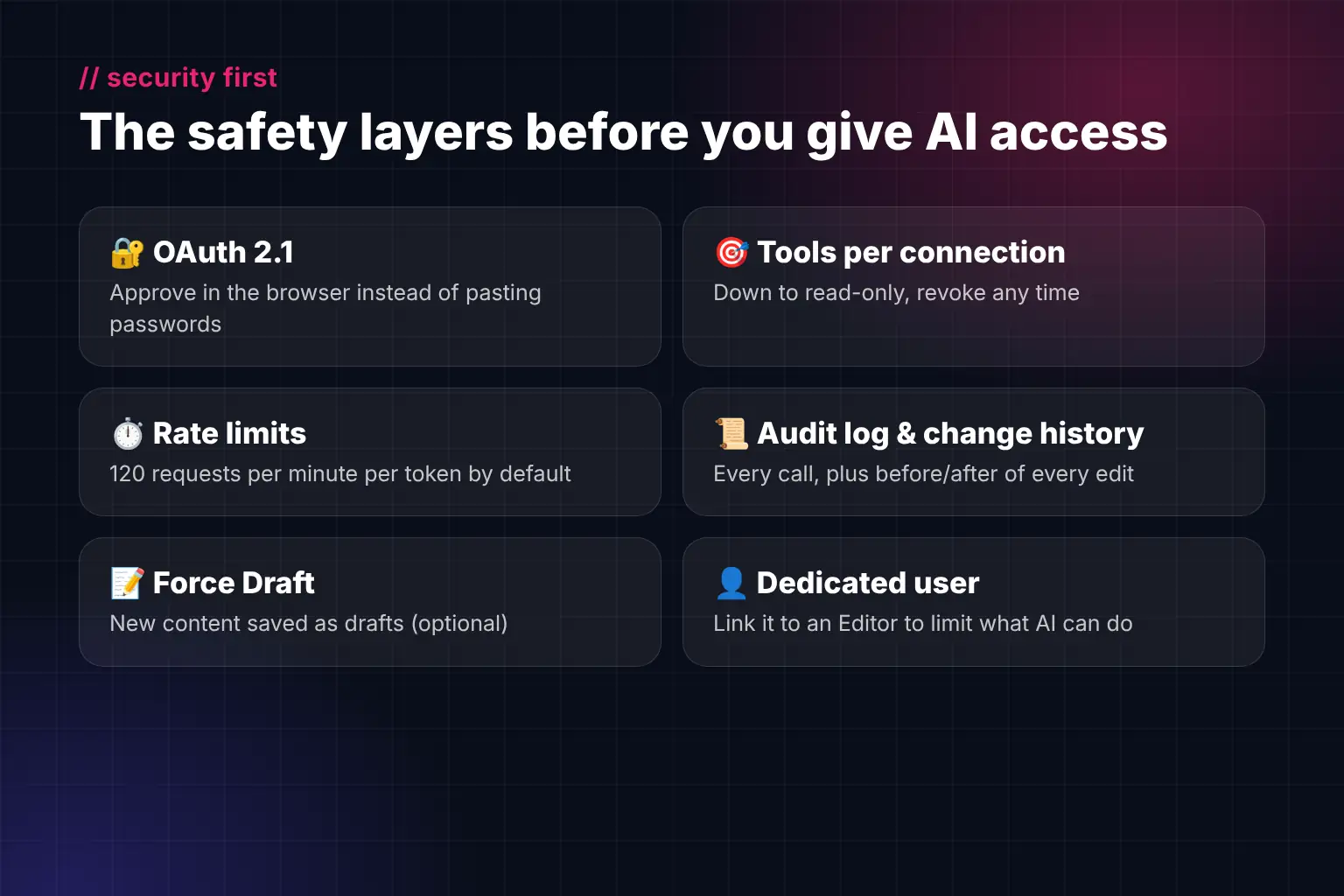
My advice: start on a staging copy with read-only prompts, then widen permissions step by step. And take a backup before any bulk edit.
| Problem | Fix |
|---|---|
| 404 when connecting | Use the exact URL from the plugin dashboard, then re-save Settings → Permalinks. |
| 401 error | Reconnect and approve again. Some hosts strip the Authorization header; the built-in diagnostics name the cause and suggest a fix. |
| Claude can’t finish sign-in behind Cloudflare | Switch Cloudflare SSL from Flexible to Full (Strict). |
| A tool doesn’t appear | Check it isn’t disabled under Easy MCP AI → Tools and that the related plugin integration is on. |
They aren’t alternatives. Elementor MCP focuses on building atomic Elementor (V4) pages, classes and variables. Easy MCP AI runs the whole site: content, media, SEO, WooCommerce and analytics. The best practical setup is running both, which is what I do here, because Easy MCP AI exposes Elementor’s abilities as tools automatically.
Building pages with Elementor? Atomic is the editor Elementor MCP works with, so read is Elementor Atomic ready to rely on first.
And with WordPress 7.2 adding more core abilities, this kind of connection gets stronger with every release.
Connecting an AI to your site is one half of the story; the other half is making your site easy for AI agents to read. I cover that in how to make your WordPress site AI-agent-ready, from llms.txt and Agent Skills to the firewall trap that gave me a false low score. And for the bigger question of whether AI is changing WordPress itself, see Is WordPress dead? The WordPress era vs AI.
Is Easy MCP AI free?
Yes. The plugin is free with all its tools, and it uses the Claude or ChatGPT plan you already have. Semrush, Ahrefs and similar tools need your own accounts and API keys.
Does Easy MCP AI work with ChatGPT?
Yes. Click Connect to ChatGPT in the plugin dashboard, add your MCP server URL on the Connectors screen in developer mode, keep authentication on OAuth, then approve access on your site.
Does my content go through the plugin’s servers?
No. The MCP server runs inside WordPress, and requests travel directly between your AI client and your site with no relay server in between.
What is the difference between Easy MCP AI and Elementor MCP?
Elementor MCP builds atomic Elementor pages. Easy MCP AI manages the whole site: posts, media, SEO, WooCommerce and analytics. You can run both together.
Do I need Node.js or coding skills?
No. The plugin is pure PHP and runs on standard hosting, and connecting Claude or ChatGPT means pasting a URL and approving it.
How can I see what the AI did on my site?
The audit log records every tool call with its time and result, and the change history keeps before and after snapshots of every edit so you can compare or roll back.
If you run a WordPress site or store and already use Claude or ChatGPT, Easy MCP AI is one of the biggest time savers you can install: publishing, SEO and reporting turn into a conversation. Just start with limited permissions, turn on Force Draft, and keep an eye on the change history.
And before you decide whether to build on WordPress or pay for a custom-coded site, read WordPress vs custom coding for the numbers on cost and security.
Want someone to connect your site to AI with a safe workflow, or need fast pages built for the Saudi market? See my landing page design and Figma to WordPress services. If your site is slow, start with my guide to fixing a slow WordPress site, or reach me directly on WhatsApp.