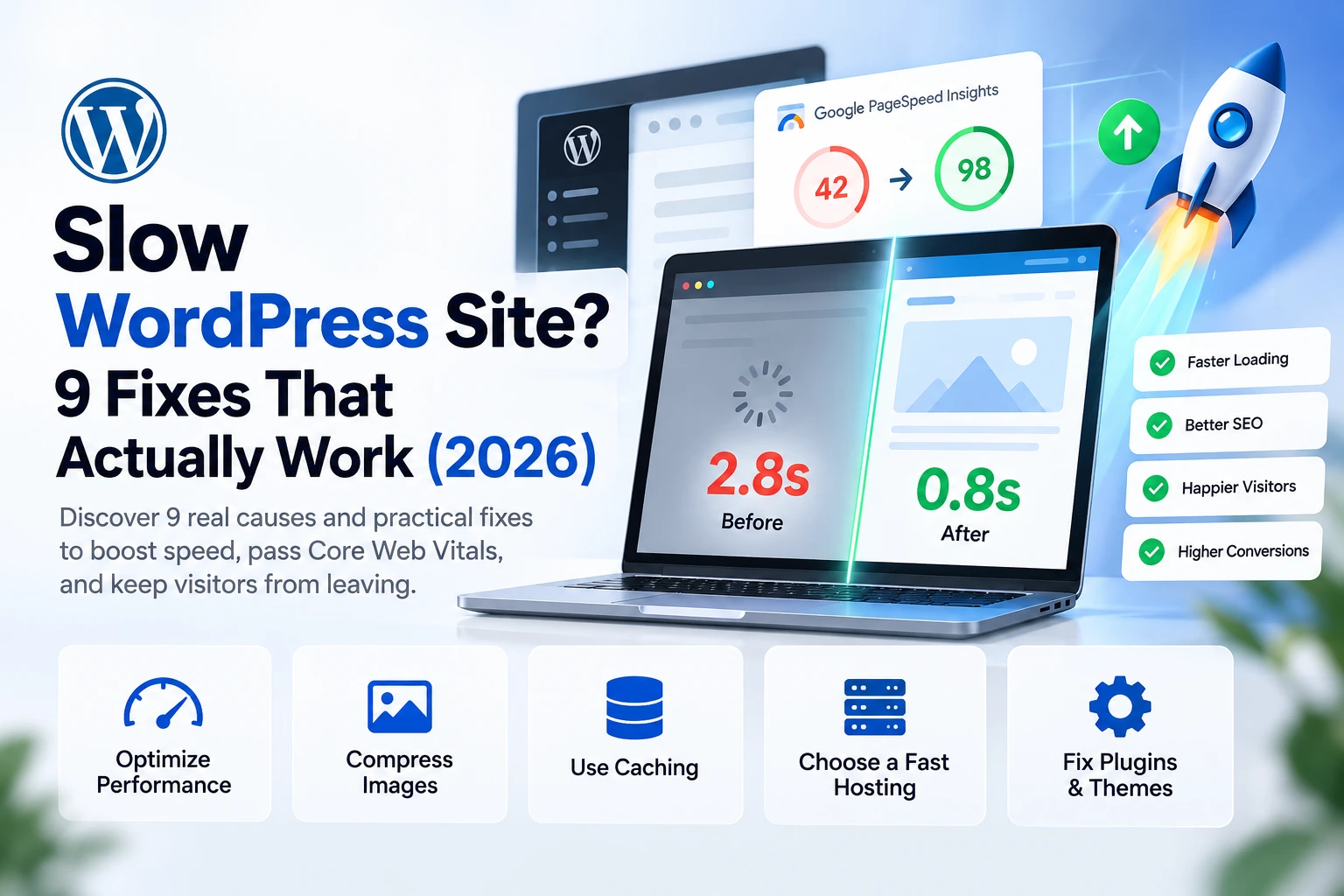
Does your site take forever to show up when you open it? If you have a slow WordPress site, you are losing three things at once: visitors who leave before they see your offer, rankings in Google, and customers who were one click away from buying or contacting you.
The good news is that most cases of a
slow WordPress site come down to a handful of known causes, and fixing them rarely requires rebuilding the site from scratch. In this guide I walk through 9 real causes I have run into across projects over 5+ years of work, and for each one the practical fix you can apply today.
The short answer: the most common cause is weak hosting, followed by missing cache, unoptimized images, and a heavy theme or plugins. Fix those four first and you will see a clear difference before you touch the rest of the list.
How to Tell If You Really Have a Slow WordPress Site
Don’t rely on how fast your site feels to you. Your own browser has cached most of the files. Test it with Google’s
PageSpeed Insights and focus on the
mobile score, since most of your visitors are on phones.
According to the
Core Web Vitals that Google uses, performance is considered good when:
| Metric |
What it measures |
Good value |
| LCP |
How fast the largest element on the page appears |
2.5 seconds or less |
| INP |
How quickly the page responds to taps and typing |
200 ms or less |
| CLS |
Layout stability (no jumping while loading) |
0.1 or less |
| TTFB |
How fast the server first responds |
800 ms or less |
If your numbers fall outside these limits, you do have a slow WordPress site, and it is worth fixing. Now, the causes.
9 Reasons You Have a Slow WordPress Site (and How to Fix Each One)
1) Weak or Unsuitable Hosting
Hosting is the foundation, and weak hosting is the most common cause of a slow WordPress site. If the server responds slowly, no other optimization can fully rescue you. The telltale sign is a high TTFB even when your page is light.
The fix:
- Choose hosting on LiteSpeed servers, which support server-level caching.
- Make sure you have enough resources (RAM and CPU) for your traffic.
- If you are on a bargain shared plan that slows down at peak times, upgrading to a higher plan or a cloud plan is often the right first step.
2) An Outdated PHP Version
Each new PHP release is faster and more secure than the last. Many slow sites are still running the version installed years ago.
The fix: From your hosting panel, move to a modern supported version (such as 8.2 or 8.3). Take a backup first and test on a staging copy, because some old plugins may not be compatible.
3) No Caching, or Caching Set Up Wrong
Without cache, WordPress builds every page from scratch on every visit: it runs PHP, queries the database, then sends the result. That burns time and resources, and it is one of the most common reasons behind a
slow WordPress site.
The fix:
- On a LiteSpeed server, use the free LiteSpeed Cache plugin.
- On other servers, use one trusted cache plugin such as WP Rocket.
- Golden rule: only one cache plugin. Running two causes conflicts and breakage.
- Exclude cart, checkout, and account pages from cache on online stores.
4) Large, Unoptimized Images
Images are the biggest data consumer on most sites. A 3 MB photo in a spot that needs 100 KB slows the page immediately and hurts LCP in particular.
The fix:
- Convert images to WebP or AVIF.
- Upload images at the size they will actually display.
- Lazy-load every image except the hero image at the top; that one should load immediately, ideally with
fetchpriority="high".
- Set width and height on every image to avoid layout shifts (CLS).
5) A Heavy Theme or Page Builder Output
Multi-purpose themes load large amounts of CSS and JavaScript that your page never uses. Some page-builder layouts also produce deeply nested markup that slows rendering.
The fix:
- Use a lightweight theme and turn on Elementor’s optimized CSS loading options.
- Cut back on heavy widgets: sliders, excessive animation, counters.
- Avoid unnecessary nested containers.
- For the best result, build the design with clean custom code instead of an off-the-shelf theme. That is exactly what I do in my Figma to custom code service, where sites are built without bloated plugins.
6) Too Many Plugins, or Poor-Quality Ones
The number of plugins is not the real issue; their
quality is. One bad plugin can leave you with a slow WordPress site, while ten lightweight ones may cost you almost nothing.
The fix:
- Delete inactive or unused plugins.
- Use Query Monitor to find which plugins consume the most queries and time.
- Replace heavy plugins with lighter alternatives, or a few lines of code where that makes sense.
- Install plugins only from trusted sources and keep them updated.
7) A Bloated Database
Over time your database fills up with post revisions, auto-drafts, expired transients, and leftover options from plugins you deleted. All of it slows queries and, over time, gives you a slow WordPress site.
The fix:
- Back up first.
- Clean revisions, drafts, and expired transients using LiteSpeed Cache (Database tab) or WP-Optimize.
- Limit how many revisions WordPress keeps per post.
- If your plan supports Object Cache (Redis), enable it. It noticeably speeds up stores and the admin dashboard.
8) External Scripts and Too Many Fonts
Tracking tools, chat widgets, ad pixels, and Google Fonts all add third-party requests that you mostly don’t control. Piling them up can leave you with a
slow WordPress site even when your own code is clean.
The fix:
- Keep only the tools you truly need, and manage them through Google Tag Manager rather than pasting them in by hand.
- Delay non-critical scripts until the first user interaction (Delay JS).
- Host fonts locally in woff2 format, use two or three weights at most, and set
font-display: swap.
- If you run paid campaigns, a lightweight landing page improves your ad spend efficiency directly. That is part of my landing pages and digital marketing service.
9) Unoptimized CSS/JS and No CDN
Large CSS and JavaScript files block the browser from rendering the page until they load (render-blocking). And if your visitors are far from your server, distance adds extra delay.
The fix:
- Enable CSS and JS minification, and load Critical CSS first.
- Defer non-essential scripts so they don’t block the first render.
- Use a CDN (such as Cloudflare or your host’s CDN) to serve files closer to visitors.
- After every change, test the whole site: menus, forms, sliders, and your WhatsApp button, because over-aggressive optimization can break elements.
A Prioritized Speed-Up Plan
If your time is limited and you have a slow WordPress site, start with the highest-impact actions:
| Priority |
Action |
Impact |
Difficulty |
| 1 |
Enable caching (LiteSpeed Cache) |
High |
Easy |
| 2 |
Compress images and convert to WebP |
High |
Easy |
| 3 |
Upgrade the PHP version |
Medium to high |
Easy |
| 4 |
Delay external scripts |
Medium to high |
Medium |
| 5 |
Remove heavy and unused plugins |
Medium |
Easy |
| 6 |
Clean the database and enable Object Cache |
Medium |
Medium |
| 7 |
Move to stronger hosting or add a CDN |
High |
Medium |
| 8 |
Rebuild pages with lightweight custom code |
Highest |
Needs a developer |
Common Mistakes When Speeding Up a WordPress Site
- Running two cache plugins together: conflicts and breakage are almost guaranteed.
- Turning on every optimization at once: change one thing at a time and test, so you know what caused any break.
- Chasing the score only: a green number doesn’t mean a good experience if the page doesn’t work properly. Test it yourself.
- Ignoring mobile: most speed problems show up on phones first.
- Skipping backups: always back up before major changes.
FAQ: Slow WordPress Site
How fast should a WordPress site be? A practical target is for the largest element on the page (LCP) to appear within 2.5 seconds on mobile, with the server’s first response under 800 ms.
Does a slow WordPress site hurt my Google rankings? Yes. Google has stated that page experience and Core Web Vitals are among its ranking signals, although great content still matters most. A slow site also raises bounce rates, which hurts your business results even if rankings don’t change.
What is the best plugin to speed up WordPress? On a LiteSpeed server, LiteSpeed Cache is the best free choice. On other servers, WP Rocket is a strong paid option. What matters is using one plugin and configuring it correctly.
Is a speed plugin enough to fix a slow WordPress site? Usually not. A plugin handles caching and file optimization, but weak hosting, a heavy theme, and bloated page code need to be fixed at the root.
How long does it take to speed up a WordPress site? The basics (cache, images, PHP) can be done in a few hours. Restructuring a theme or scripts can take days depending on the size of the site.
Conclusion: Where to Start
If you have a
slow WordPress site, start with three steps today: enable caching, optimize your images, and upgrade your PHP version. Then re-test in PageSpeed Insights and work through the rest of the causes using the priority table above.
If you don’t have the time or the confidence to do this safely, I will audit your site, pinpoint exactly what is slowing it down, and implement the fixes without breaking your design or functionality. You can
see my work on the homepage or start your project directly on
WhatsApp.
Running a Salla or Zid store? I can customize your storefront with lightweight code that keeps the shopping experience fast, details on the
Salla and Zid stores page.